What is Data Backup?
Data Backup in Money Manager ensures that your entire financial history — including all transactions, accounts, budgets, goals, and settings — is securely saved and never lost. Whether you switch to a new device, accidentally delete data, or simply want peace of mind, the backup system has you covered. You can choose to back up automatically on a schedule, or take a manual backup at any time with a single tap.
Your data, always protected. Set a backup schedule once and let Money Manager handle the rest — automatically saving your data daily, weekly, or monthly so you never have to worry about losing your financial records.
Backup Features
Everything you need to keep your financial data safe, recoverable, and portable:
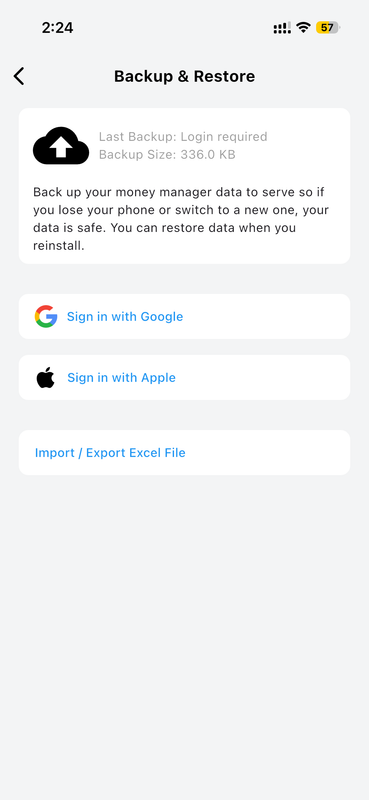
Sign In to Enable Backup
To get started with data backup, simply sign in to your Money Manager account. Once logged in, your backup settings are securely linked to your account, ensuring your data is tied to you — not just your device.
This also means your backed-up data is safely accessible whenever you reinstall the app or switch to a new phone.
Multiple Profiles
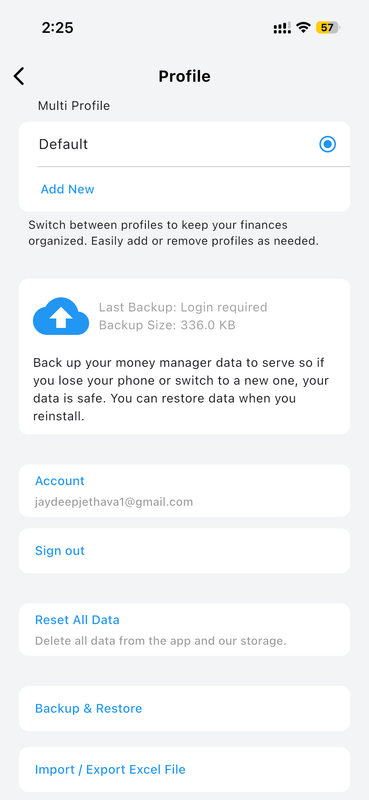
Create multiple profiles for different purposes, such as personal, business, or family finances. Each profile has its own separate data and settings, allowing you to manage your finances more effectively.
Easily switch between profiles with a single tap and manage your finances on the go with ease. Whether you're tracking daily expenses, planning a budget, or saving for a long-term goal, Money Manager has you covered.
View Your Last 3 Backups
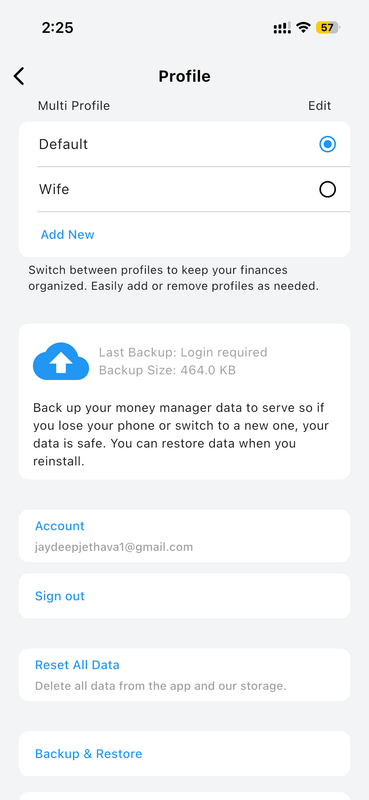
Money Manager keeps a record of your three most recent backups so you always have a clear view of your backup history. Each entry shows the exact date and time the backup was taken, giving you full confidence that your data has been saved.
This makes it easy to verify that your automatic schedule is working correctly, or to confirm when your last manual backup was performed.
Restore Your Data in One Tap
If you ever need to recover your financial data, Money Manager makes it simple. Select any of your saved backups from the backup history and tap Restore — your entire financial data, including transactions, accounts, budgets, and goals, will be fully recovered within seconds.
This is especially useful when setting up a new device or recovering from accidental data loss.
Flexible Automatic Backup Schedules
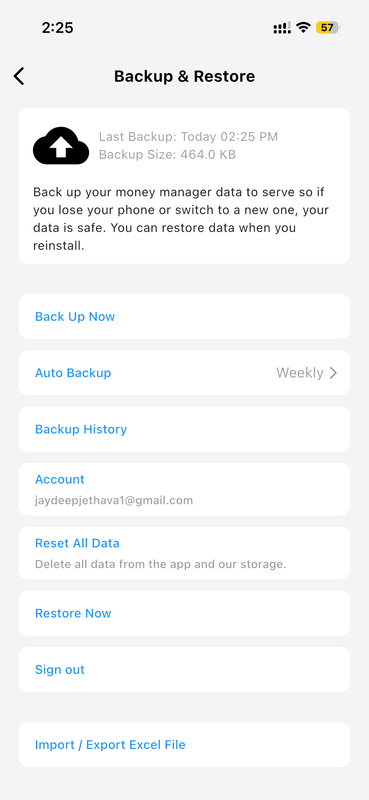
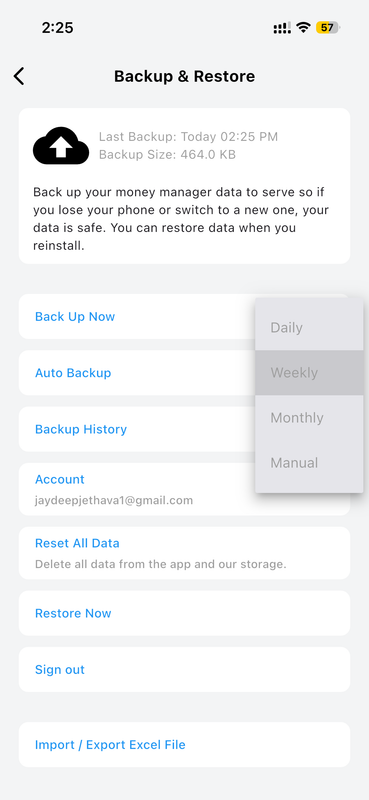
Money Manager lets you choose exactly how often your data is backed up automatically. Select from four convenient backup modes:
- Daily — Your data is backed up once every day, keeping your records continuously up to date.
- Weekly — A backup is taken automatically once a week, ideal for users who prefer a light-touch approach.
- Monthly — A monthly snapshot of your data is saved, perfect for long-term archiving.
- Manual — You stay in full control and take a backup yourself whenever you choose.
Import a Backup File
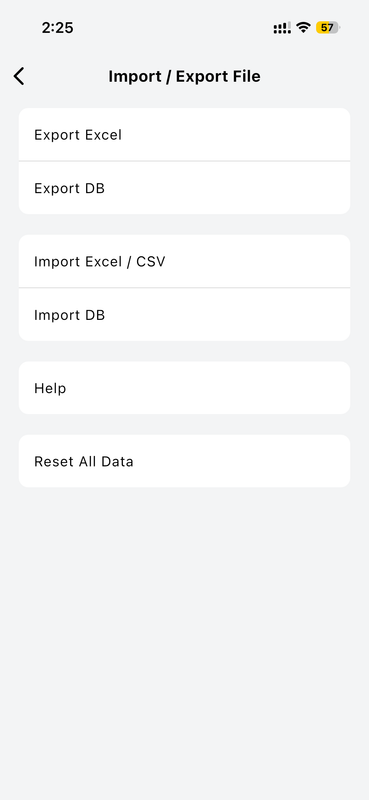
Already have a backup database file saved on your device or cloud storage? You can import it directly into Money Manager to fully restore your data. Simply select the backup file from your device and the app will load all your financial records instantly.
This is the ideal way to migrate your data to a new phone or recover from a file you exported previously — no internet connection required.
Export Your Backup Database File
Need a local copy of your data? Money Manager lets you export your entire backup as a database file directly to your device's storage or share it via any app — email, cloud storage, or messaging apps.
This gives you a portable, offline copy of all your financial data that you can store anywhere and keep as a long-term archive completely independent of the app.
Supported Import File Formats
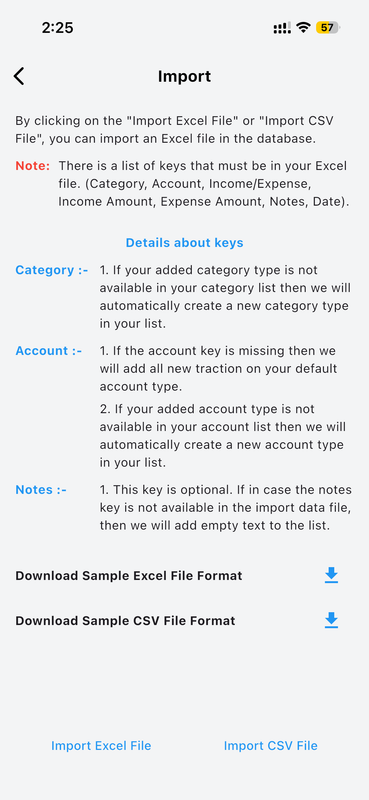
Money Manager supports importing data from multiple file formats, making it easy to bring in records from other apps or spreadsheets.
Both CSV and Excel files are supported, giving you full flexibility when migrating your financial data into the app.
Review Your Imported Data
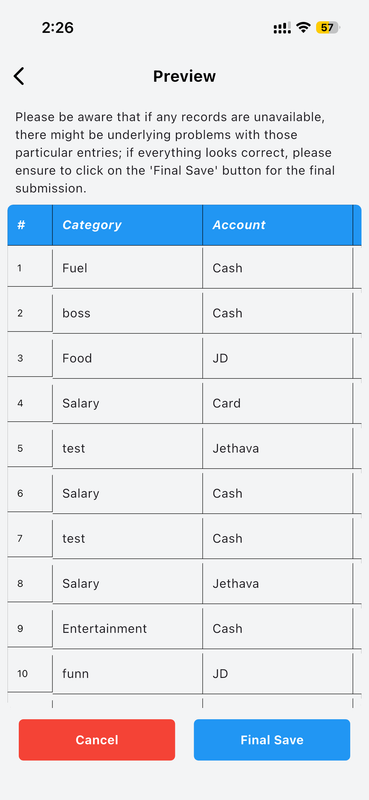
After importing, you can view a complete list of all income and expense entries that were brought in. Each record is clearly displayed so you can quickly verify the data before it becomes part of your financial history.
You can also edit or delete any imported entry, as well as export the imported data at any time for further use or record-keeping.
How to Set Up Data Backup
-
Sign In to Your Account Open Money Manager and log in to your account. Backup features are tied to your account for secure, personal data protection.
-
Go to Backup Settings Navigate to the Settings section and tap "Data Backup" to access all backup options.
-
Choose Your Backup Mode Select your preferred backup frequency — Daily, Weekly, Monthly, or Manual. The app will automatically follow your schedule from this point on.
-
Take a Manual Backup Anytime Tap "Back Up Now" to instantly create a backup at any time, regardless of your automatic schedule.
-
Restore, Export, or Import View your last 3 backups and tap Restore to recover your data. Use Export to save a local database file, or Import to load a previously exported file.
Why Data Backup Matters
Your financial data represents months or years of careful record-keeping. Losing it to a device failure, accidental deletion, or an app reinstall can be deeply frustrating. Money Manager's Data Backup feature ensures that scenario never happens to you — your records are always safe, always recoverable, and always under your control.
With flexible scheduling, one-tap restore, and full database export and import support, Money Manager gives you total confidence that your financial history is protected — no matter what happens to your device.