What is the Customized Dashboard?
The Customized Dashboard is the heart of Money Manager. Instead of a fixed layout, you get a fully personalized home screen where you decide which financial information appears, in what order, and how it looks. Whether you want to track daily spending, monitor savings goals, or check your net worth first thing in the morning — your dashboard reflects your priorities.
Drag. Drop. Done. Rearrange widgets with a simple long-press and drag. Your layout is saved automatically and syncs across your devices.
Available Widgets
Choose from a rich set of widgets to build your perfect overview:
Customized Dashboard
Money Manager offers two dashboard modes — the Classic Dashboard and the Customized Dashboard. You can switch between them at any time based on your preference.
In the Customized Dashboard, you have full control to add, remove, and rearrange widgets to build a layout that perfectly fits your financial needs.
You can also create multiple custom dashboards, each tailored for a different purpose — such as personal finance, business expenses, or savings tracking.
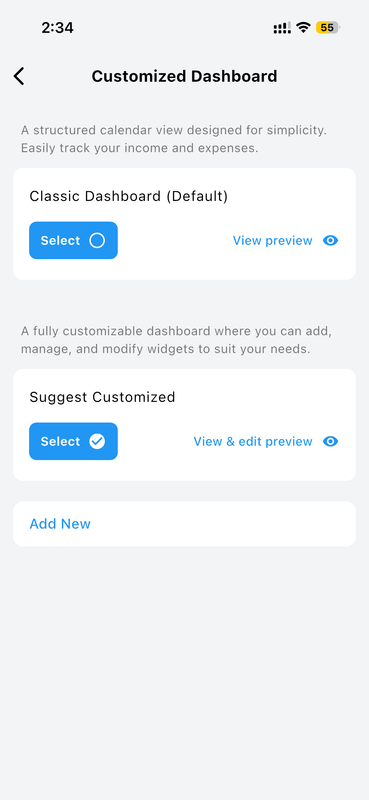
Suggested Dashboard
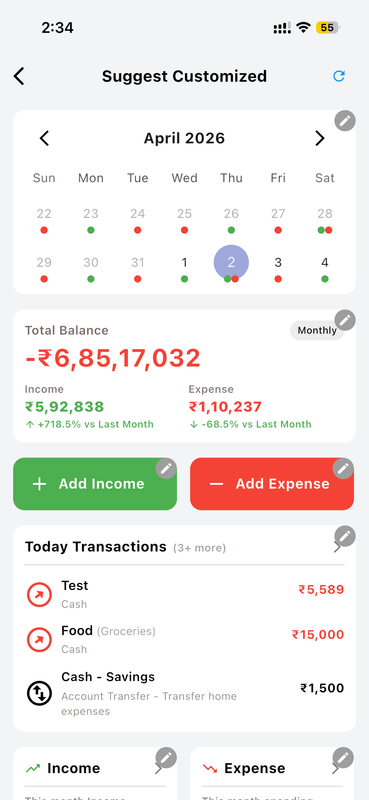
Money Manager provides a ready-to-use Suggested Dashboard so you can start tracking your finances right away without any setup.
A Calendar Widget sits at the top, letting you view transactions by week, bi-weekly, or monthly period with a single tap.
The Overview Widget gives you a clear snapshot of your total balance, income, and expenses — filtered by your selected time period, accounts, and categories.
A Category-Wise Widget breaks down your spending and income by category, helping you identify where your money is going based on the selected filters.
The Today's Transactions Widget lists all transactions for the current day, and you can customize how many records are displayed at a time.
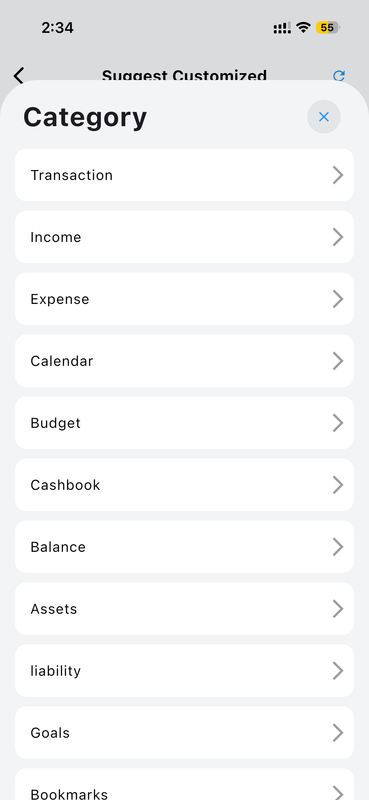
Widget Category Library
Money Manager offers a rich library of widget categories to help you build a truly personalized dashboard. Choose from the following widget types:
- Transaction Widgets — View recent and daily transaction lists at a glance.
- Income & Expense Widgets — Monitor your earnings and spending in multiple visual styles.
- Calendar Widget — Keep track of financial activity by date.
- Goal & Budget Tracking Widgets — Stay on top of your savings goals and monthly budgets.
- Graph Widgets — Visualize income and expense trends with charts and graphs.
- Assets & Liabilities Widget — Get a clear picture of your net financial position.
- Cashbook Widget — Track cash inflows and outflows in a dedicated view.
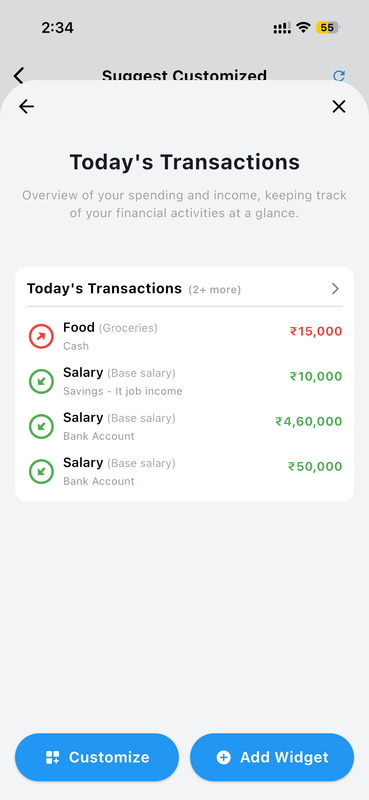
Transactions Widget
The Transactions Widget displays a live list of your recent transactions directly on your dashboard, so you always know what's happening with your money.
You can customize the number of records shown, and filter data by a specific time period — including weekly, bi-monthly, monthly, quarterly, half-yearly, or yearly.
Filter transactions by specific accounts and categories to focus on what matters most. You can also set a custom title and subtitle to personalize the widget's header.
Income Widget
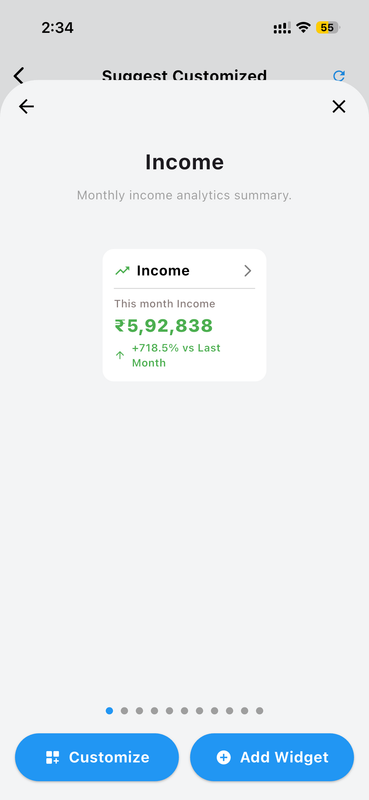
Visualize your income with up to 9 different display styles, ranging from simple summaries to detailed chart views — choose the one that suits your workflow best.
Select a custom time duration to view income data for a specific period, and filter by individual accounts and categories for a more focused analysis.
Add a personalized title and subtitle to each Income Widget to keep your dashboard organized and easy to understand at a glance.
Expense Widget
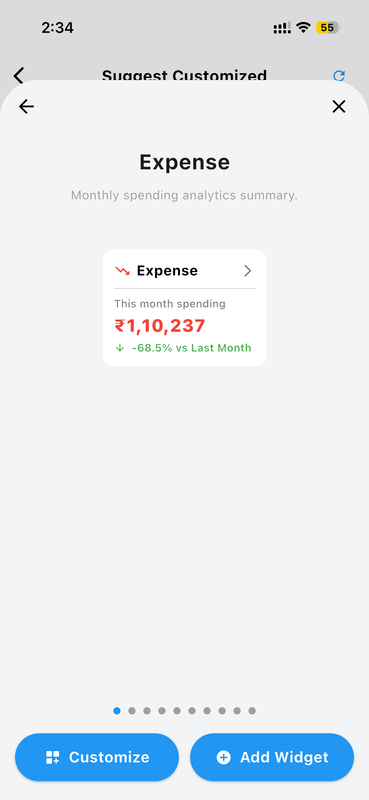
Keep a close eye on your spending with up to 9 different expense widget styles, from compact summaries to full breakdown charts — all displayed right on your dashboard.
Choose a custom time duration to analyze your expenses over any period, and narrow down the data by specific accounts and categories for greater clarity.
Add a custom title and subtitle to each Expense Widget so your dashboard stays organized and instantly informative.
Graph Widgets
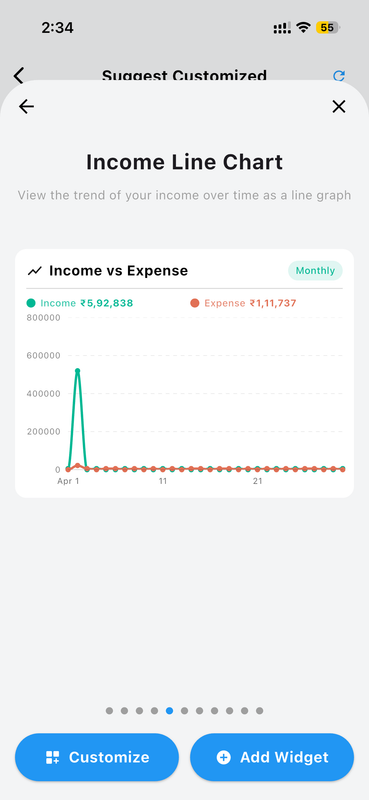
Turn your financial data into clear, visual insights with 5 different graph styles — including bar charts, line graphs, pie charts, and more — all available directly on your dashboard.
Select a custom time duration to plot trends over any period, and filter the data by specific accounts and categories to pinpoint exactly what you want to track.
Give each Graph Widget a personalized title and subtitle to keep your dashboard well-organized and easy to navigate.
Goals Widget
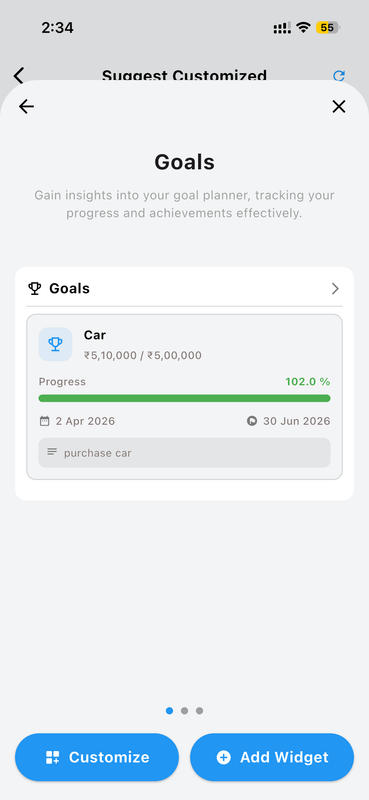
Track your savings goals right from the dashboard with 3 different goal widget styles, giving you a clear and motivating view of your financial targets.
Easily see which goals are in progress and which have been completed — all in one place. Select a custom time period and filter by accounts or categories for a more detailed view.
Add a custom title and subtitle to each Goals Widget to keep your dashboard personalized and easy to read.
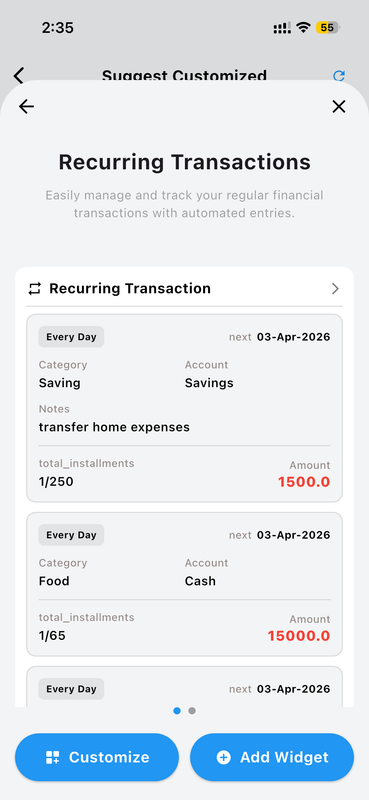
Recurring Transactions Widget
Stay on top of your fixed and repeating expenses with 3 different recurring transaction widget styles, all available right on your dashboard.
Select a custom time period to review past or upcoming recurring transactions, and filter by specific accounts and categories to get a focused view of your commitments.
Add a personalized title and subtitle to keep your dashboard clear, organized, and easy to scan at any time.
How to Customize Your Dashboard
-
Open the Dashboard Launch Money Manager and land on your home screen dashboard.
-
Tap "Edit" or Long-Press a Widget Enter edit mode by tapping the edit icon in the top corner or long-pressing any widget.
-
Add or Remove Widgets Browse the widget library and toggle on the ones you want. Deselect any you don't need.
-
Drag to Rearrange Hold and drag any widget to reposition it exactly where you want it on the screen.
-
Save Your Layout Tap "Done" and your personalized layout is saved — it stays exactly as you set it.
Why You'll Love It
Everyone manages money differently. A freelancer may want to see client payment goals front and center. A family might prioritize grocery and utility budget widgets. A saver wants the net worth tracker at the top. The Customized Dashboard adapts to your financial life — not the other way around.
Combined with Money Manager's real-time sync and cloud backup, your layout is always available, always up-to-date, and always yours.